
Creating a QR Code to Collect Google Business Reviews
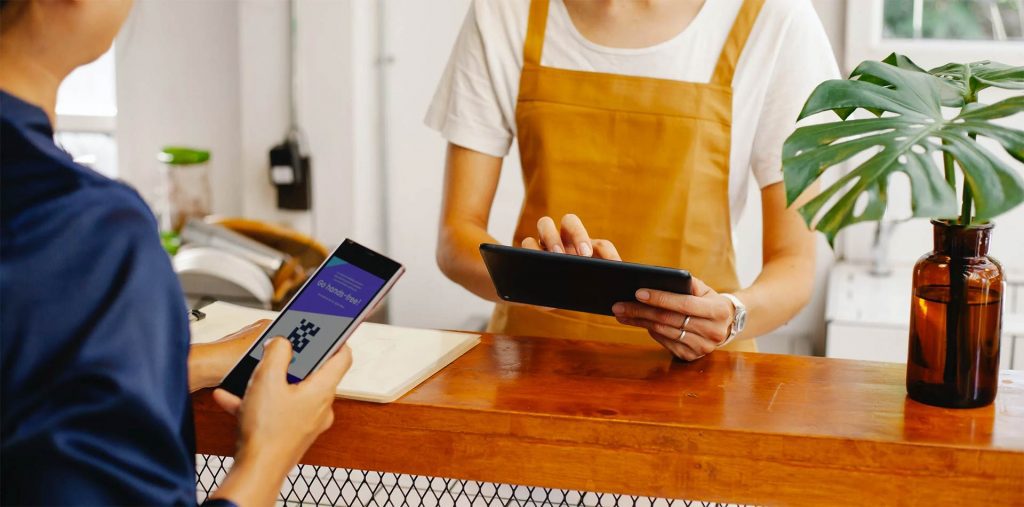
Ever since the COVID pandemic started, QR codes have been given a new lease on life. What seemed like a technology that was never going to fully take off, is now completely main stream with many restaurants making it the only way to view a menu.
Now that most people are embracing the QR code scan, it’s a natural fit to incorporate them into business review collection. Customers WANT to leave you positive reviews, they just don’t want to take the time to do it. Therefore, anything you can do to streamline the process will result in a higher participation rate.
Today we’re going to give you a quick 8 step guide for generating a QR code to collect Google business reviews. This Google Review QR code will take customers directly to your listing on Google where a popup will prompt them to immediately begin writing their review. How cool is that? If this is something you’ve tried before and failed to create, don’t be discouraged. We promise, anybody can follow the simple steps outlined below.
What Do Google Reviews Help Accomplish?
Google Reviews are the lifeline for many businesses. They help businesses:
- Show up higher in search engine results
- Show up on Google map searches
- Validate their businesses reputation & showcase happy customers
- They’re permanent
Many businesses pay fancy SEO companies thousands of dollars per month to try and ‘trick’ search engines to rank them in the top results. Stop fighting the billion dollar company that is Google and instead work with them by collecting and showcasing Google Reviews.
Without further discussion, lets get to creating the QR Code to Collect Google Reviews:
- On your computer, visit the Google Business Manager and sign-in if prompted: https://business.google.com/
- If you manage multiple businesses, you’ll see a list of the businesses you have access to in the middle of the page. Select the business that you are trying to collect reviews for.
- Once you’ve selected the business you’re collecting reviews for, make sure you are on the ‘Home’ tab. You’ll see the tabs on the left side of the screen. If you’re unsure, click ‘Home’ which will be the top menu item on the left.
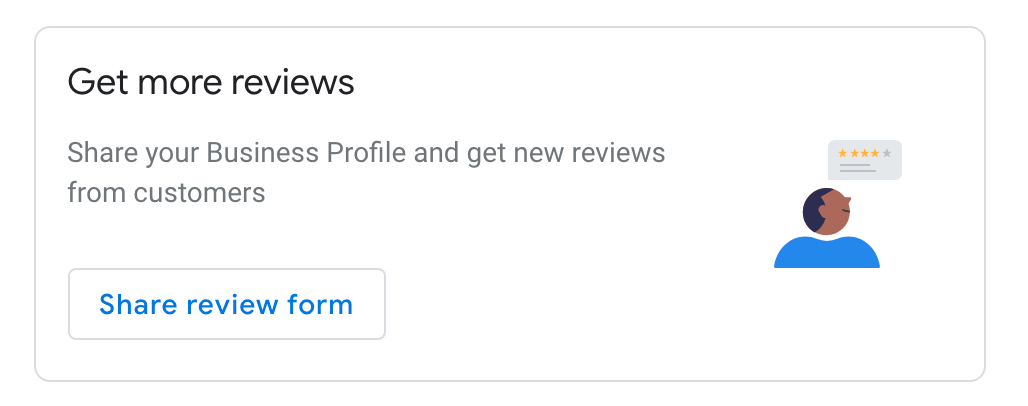
- Scroll down on your home screen until you see a widget titled ‘Get More Reviews’ with a button that says ‘Share Review Form’. Click that button. See screenshot below for an example of the widget.

- Once you click the button a popup will happen that includes a link to your review form. Copy that link.
- Navigate over to the Arrivala Review QR Code Creation Tool –> https://arrivala.com/create-a-qr-code-to-collect-business-reviews
- In the field that says ‘Enter your review link URL’, paste in the link that we generated in step #5 and click Generate QR Code
- The system will output a QR code that you can save to your computer and place on any marketing material you’d like. Congrats you’ve done it!
That wasn’t so bad was it? You can use your QR code anywhere you’d like. It will work on a computer such as in your email signature and will also work on printed materials. Here’s a handful of ideas you could use to help drive new reviews with this QR code:
- Print the QR code directly on your restaurant menu
- Print the QR code on your retail store receipt
- Create a flyer and put the QR code on the inside of your exit door so people can scan on their way out
- Put it in your email signature
- The possibilities are endless!
Ready to take it a step further?
Consider taking a look at Arrivala.com automated review collection platform. Arrivala has both free and paid plans that incorporate QR codes into our review collection process. On top of what we’ve explained above, Arrivala can help you:
- Automatically follow up with past customers
- Distribute your reviews to multiple review platforms – Instead of leaving a review just on Google we can also get it to Facebook, Yelp, etc..
- Negative review filtering to help catch negative reviews before they happen
- And so much more
Have a look at the Arrivala packages by going to Arrivala Review Collection with QR Codes.
Ready to watch your reviews take flight?
Sign-Up Today!Additional News
 Read more
New! Collect Reviews On RealSelf & Safari Bookings
Arrivala is happy to announce the integrations of two new review platforms to our system: RealSelf & SafariBookings. When we
... Read more
3 Free Methods For Getting More Online Reviews
Ever since Google pivoted from their goal of creating a social media platform, their vision has been about one thing
... Read more
Get Business Reviews Using QR Codes – Free & Easy
Online business reviews are a critical component of building your online reputation. Nearly everybody reads them and makes business and
... Read more
3 Step Guide To Creating The Perfect Review Request Email
You won’t know unless you ask. You’ve probably heard the phrase before and it certainly applies to review collection. The
... Read more
Collecting Online Business Reviews In Multiple Languages
It’s time to celebrate, Arrivala is now multilingual! Owning a business and being able to support clients who speak multiple
... Read more
4 Step Guide – White Label Review Management Options
White label review management is the ability to brand review automation software with your companies name. Reputation management and review
...